
Canva: AI Photo & Video Editor
CanvaArt & Design
4.8103.61K Reviews
- Version
- 2.383.0
- Installs
- 500.00M
- Age Rating
- Everyone 10+
Screenshots
Our Review of Canva: AI Photo & Video Editor
 Analysis by Appyee
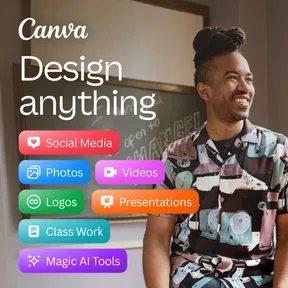
Ever found yourself wishing you could design like a pro without actually being one? Enter Canva: AI Photo & Video Editor, the app that's here to make you look like a creative genius without the years of art school. Seriously, if you haven't tried it yet, you're in for a treat!
That easy entry is the core of my recommendation, though I’d qualify the “pro” comparison: Canva helps non-designers make polished, practical work quickly, but it doesn’t replace the control or craft of specialist editing software. I find it most useful when the job is to communicate clearly and get a finished visual out the door, rather than to perfect every pixel.
Getting Started with Canva
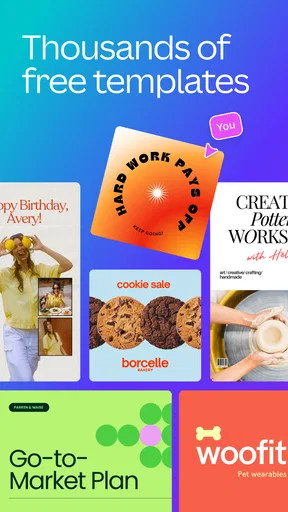
First things first, Canva is super user-friendly. I mean, you don’t need to be tech-savvy or have any design skills to navigate this app. Once you download it, you’ll be greeted with a clean and intuitive interface that’s just begging you to start creating. You can choose from thousands of templates for everything from social media posts to professional presentations. Just pick a template and let your creativity flow!
That template-first approach also answers a practical question: what if I have an idea but don’t know how to lay it out? Starting from a design close to your goal gives you a visual structure to adapt, which is less intimidating than a blank canvas. I’d still treat a template as a starting point, not a finished design. Swapping in your own wording, choosing a small set of consistent colors, and removing decorative pieces that don’t serve a purpose usually makes the result feel more personal and easier to read.
As an art and design app made by Canva, it sits between a simple phone editor and a more technical desktop design program. Its appeal is convenience: I can begin with a ready-made layout and shape it around a real task without learning a complicated toolset first. The app is free to download, though in-app purchases range from $1.49 to $300.00 per item, so I’d check what is included in a particular asset or option before building a project around it. Canva has a 4.8 average from around 24 million ratings and more than 500 million installs, which suggests it has found a broad audience, but popularity alone doesn’t mean every workflow will suit you.
Features That Wow
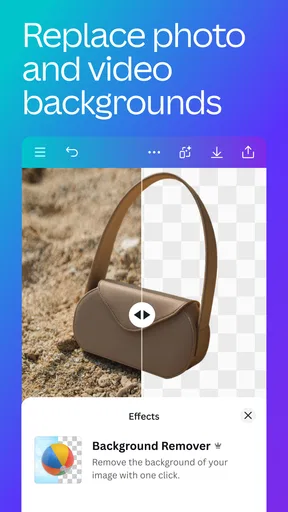
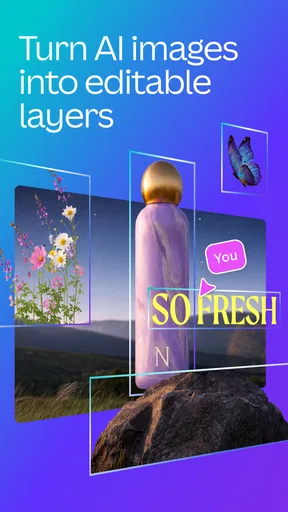
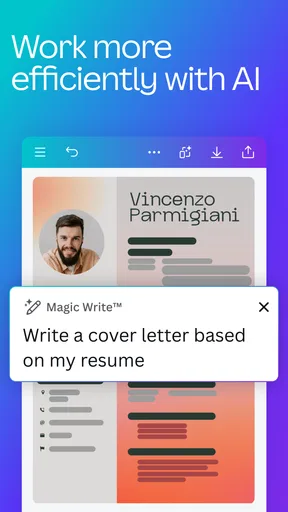
What makes Canva stand out is its AI-driven tools. The app offers a plethora of features that are not only powerful but also incredibly easy to use. The AI photo editing tools let you enhance or transform your photos with a few taps. Want to remove a background? No problem! Canva’s got you covered.
For a small business owner, one useful way to think about the editor is as a quick route from a product photo to a usable promotion. I’d choose a clear image, remove a distracting background when the tool gives a clean result, and then place the subject into a layout with a short headline and a readable call to action. The important judgement call is to inspect edges around hair, transparent objects, and intricate shapes: automatic cutouts can save time, but they may not look convincing on every image. If the boundary looks rough, a simpler crop or a different photo can be better than spending too long trying to rescue it.
The AI functions are best treated as helpers rather than a substitute for choosing the right source material. A sharply lit photo with a distinct subject gives editing tools more to work with than a dark, cluttered image. I’d keep an untouched copy of an important original and compare the edited version at full size before sharing it. That small check helps catch an over-smoothed face, an awkward edge, or a change that looked fine on a phone screen but distracts once the design is viewed larger.
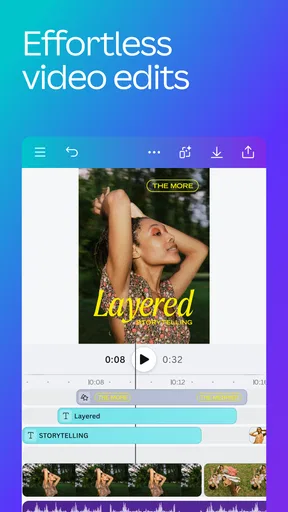
Then there’s the video editing feature. Surprisingly robust, it allows you to create stunning videos with transitions, music, and effects. Perfect for anyone looking to spice up their Instagram stories or create a professional-looking video presentation.
For a short social clip, I’d decide the order of the message before adding effects: opening image, one clear point, and a closing frame that gives the viewer somewhere to go. Transitions and music can help the sequence feel intentional, but too many competing effects make a simple announcement harder to follow. On a phone, I’d also preview the whole edit before exporting, because timing and text placement can feel different in motion than they do while arranging individual parts. For detailed cutting, layered sound work, or precise color adjustments, a dedicated video editor is likely the better fit.
Design Like a Pro
One of the coolest things about Canva is how it empowers you to design like a pro. With its drag-and-drop functionality, you can easily add text, shapes, and images to your design. The app also includes a wide range of fonts and stock images to choose from. Whether you’re creating a business card or a banner, Canva makes it look like you spent hours on it, even if it only took you minutes.
One non-obvious habit that improves a quick design is to establish a simple hierarchy before polishing details. I’d make the main message the most prominent element, keep supporting information smaller, and use one or two type styles consistently. The app makes it easy to add more, but the ability to add decoration is not a reason to use all of it. If a layout feels crowded, removing a shape or image often improves it faster than adding another effect.
Stock images and templates are convenient when I need a fast visual, but they can also make unrelated projects look alike if I leave them untouched. A practical middle ground is to replace the most noticeable stock image, adjust the colors to match the subject, and rewrite the sample text in my own voice. I’d also check that any image or design element I choose is appropriate for the way I plan to use the finished work; a convenient asset should not be assumed to fit every purpose.
A realistic everyday use would be preparing a last-minute announcement for a community event. I could choose a suitable post layout, add the date and location, include a photo, and make a second version sized for a different social placement. Before sharing, I’d check that the essential details remain readable on a small screen and ask someone unfamiliar with the event to find the time and place at a glance. That quick test is more useful than adding extra visual flourishes.
Oh, and did I mention the collaboration feature? You can invite others to work on a project with you in real-time. This makes it perfect for teams or anyone working on group projects. Plus, it’s all synced across devices, so you can start on your phone and finish on your laptop without missing a beat.
For a group project, collaboration is most helpful when people agree on the basics before editing: who owns the wording, which version is current, and what visual style the group wants. Otherwise, multiple hands can create inconsistent fonts, colors, or edits that are hard to reconcile. I’d use shared work for comments and coordinated changes, then have one person make a final pass for spacing and consistency. That keeps the convenience of working together without assuming every contributor has the same design priorities.
Where the Convenience Has Limits
Phone-first design is a real strength for quick work, but it also brings a trade-off. A small screen makes fine alignment and detailed text editing less comfortable, especially on a dense presentation or a design with many elements. I’d happily use the app to draft or make a fast revision while away from a computer; for a long document, complicated layout, or careful retouching, I’d rather move to a larger screen and a tool built for that level of control.
Another friction point is decision-making. A large range of templates, fonts, photos, and effects can make it easy to spend more time browsing than making. I get better results when I start with a specific format and purpose, then limit myself to a few choices that support it. If I need only a precise photo adjustment, opening a specialist photo editor may be quicker than building a full design around the image. If I need a custom illustration from scratch, a drawing app gives me more direct control than a template-led workflow.
It is also worth separating “easy to make” from “ready to publish.” A design can look polished while still containing a typo, an unclear message, or information that is too small for its intended audience. I make a final proofing pass and, for anything public-facing, check the export on the device or surface where people will see it. Canva can speed up production, but it cannot decide whether a message is accurate or whether a layout is appropriate for its audience.
Who I’d Recommend It To
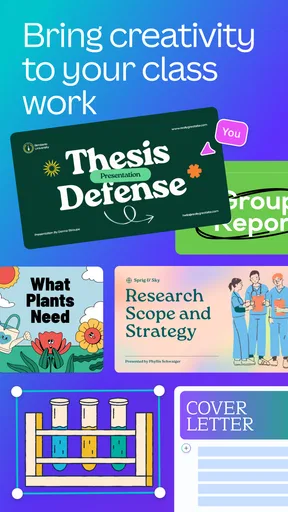
I’d recommend Canva to students preparing presentations, small businesses making everyday promotional graphics, community organizers creating event materials, and anyone who needs visual content without wanting to learn a full professional design suite. It is particularly useful when the same person has to make several related pieces and wants to keep their general look consistent. Its broad reach is reflected in around 98,000 written reviews, but the right reason to use it is still whether its template-led workflow matches the work you actually do.
I’d be more cautious about recommending it as the only tool for a professional photographer, an illustrator who wants precise brush control, or a video editor working on complex cuts and sound. Those users may value detailed controls more than convenience. I’d also skip it if choosing among templates feels more distracting than helpful; a simple editor with fewer decisions, or a specialist tool focused on one task, may suit that person better.
The age rating is Everyone 10+, a useful detail for families considering creative projects together. I’d still guide younger users through choices about images, wording, and sharing, since making a design is only one part of publishing it responsibly. The current version is 2.342.0 and the minimum operating system is 6.0, so it is worth checking that a device meets that requirement before planning a project around the app.
Final Thoughts
In a nutshell, Canva: AI Photo & Video Editor is a game-changer for anyone looking to create high-quality designs without the fuss. It’s packed with features that let you unleash your creativity and impress your audience. Whether you're a small business owner, a student, or just someone who loves to design, Canva has something to offer. So why not give it a shot? You might just surprise yourself with what you can create!
My recommendation is strongest for people who need good-looking, practical work at a steady pace and are comfortable making the final decisions themselves. The app lowers the barrier to producing a poster, presentation, photo edit, or short video, while templates and shared projects make common tasks approachable. I wouldn’t choose it for every creative job, but for everyday visual communication I find the balance of speed and flexibility compelling.
Canva was released on November 27, 2017, and its continued usefulness comes down to a straightforward promise: it helps turn an idea into a shareable design without demanding specialist skills first. I’d start with one real task, such as a class slide or event post, and see whether the editing flow feels natural. If you enjoy that process, it can become a handy creative workspace; if you need exacting control, you’ll know when it is time to reach for a more focused alternative.
Privacy and Permissions
See what permissions an app requests and how it handles your data.
- Photos/Media/Files
- read the contents of your USB storage, modify or delete the contents of your USB storage
- Storage
- read the contents of your USB storage, modify or delete the contents of your USB storage
- Camera
- take pictures and videos
- Microphone
- record audio
- Wi-Fi connection information
- view Wi-Fi connections
- Other
- view network connections, full network access, change your audio settings, run at startup, control vibration, prevent device from sleeping
Verdict
Strengths of Canva: AI Photo & Video Editor
- User-friendly interface for quick edits.
- Variety of templates for social media posts.
- Collaborative features for team projects.
- Regular updates with new design elements.
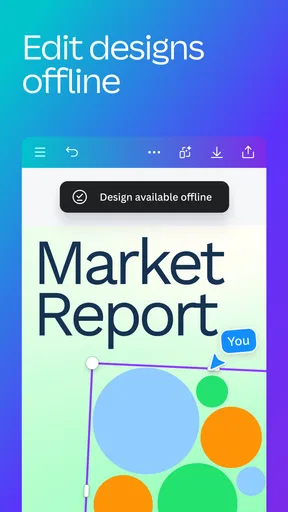
- Offline editing mode for convenience.
Limitations of Canva: AI Photo & Video Editor
- Limited features in free version.
- Occasional app crashes reported.
- Requires internet for certain features.
- Some tools can be hard to find.
- Mobile version lacks desktop features.
Similar Picks in This Category
View All
PENUP – Drawing-sharing SNS
Samsung Electronics Co., Ltd.4.5

Crafto
Kutumb App4.6

Sketchbook
Sketchbook4.1

ibis Paint X
ibis inc.4.5

Adobe Express: AI Photo, Video
Adobe4.6

PaperColor
Eyewind4.5
You May Also Like
View All

Frequently Asked Questions
What is Canva: AI Photo & Video Editor?
Canva: AI Photo & Video Editor is a versatile app designed for creating stunning graphics, photos, and videos. It offers a wide array of templates, tools, and features that cater to both beginners and professionals. With its intuitive interface and AI-powered capabilities, users can easily enhance their creative projects.
Is Canva: AI Photo & Video Editor free to use?
Canva offers both free and paid versions. The free version provides access to a vast collection of templates and design tools. However, some features and premium content require a subscription to Canva Pro, which unlocks additional functionalities like enhanced editing tools and a larger content library.
What features does Canva's AI provide?
Canva's AI features include automated design suggestions, smart resizing for different platforms, and AI-powered photo enhancements. These tools help streamline the design process, allowing users to create professional-quality content with minimal effort. The AI also assists in generating quick edits and design adjustments.
Can I use Canva: AI Photo & Video Editor offline?
Canva primarily operates as an online platform, meaning an internet connection is required to access most of its features and save your work. However, the app does offer some offline capabilities, allowing you to work on designs that have been downloaded beforehand. Full functionality is restored once online again.
Is Canva: AI Photo & Video Editor suitable for beginners?
Yes, Canva is highly suitable for beginners. Its user-friendly interface, along with a plethora of tutorials and guides, makes it easy for new users to navigate and create impressive designs. The availability of pre-made templates also simplifies the design process, enabling beginners to produce professional-looking content quickly.
